
Authentication
FluentCRM uses WordPress REST API authentication. You'll need to create application credentials to access the API securely.
Creating API Credentials
Step 1: Choose the Account for API Access
Use a dedicated account rather than your own, so access can be revoked without disrupting anyone.
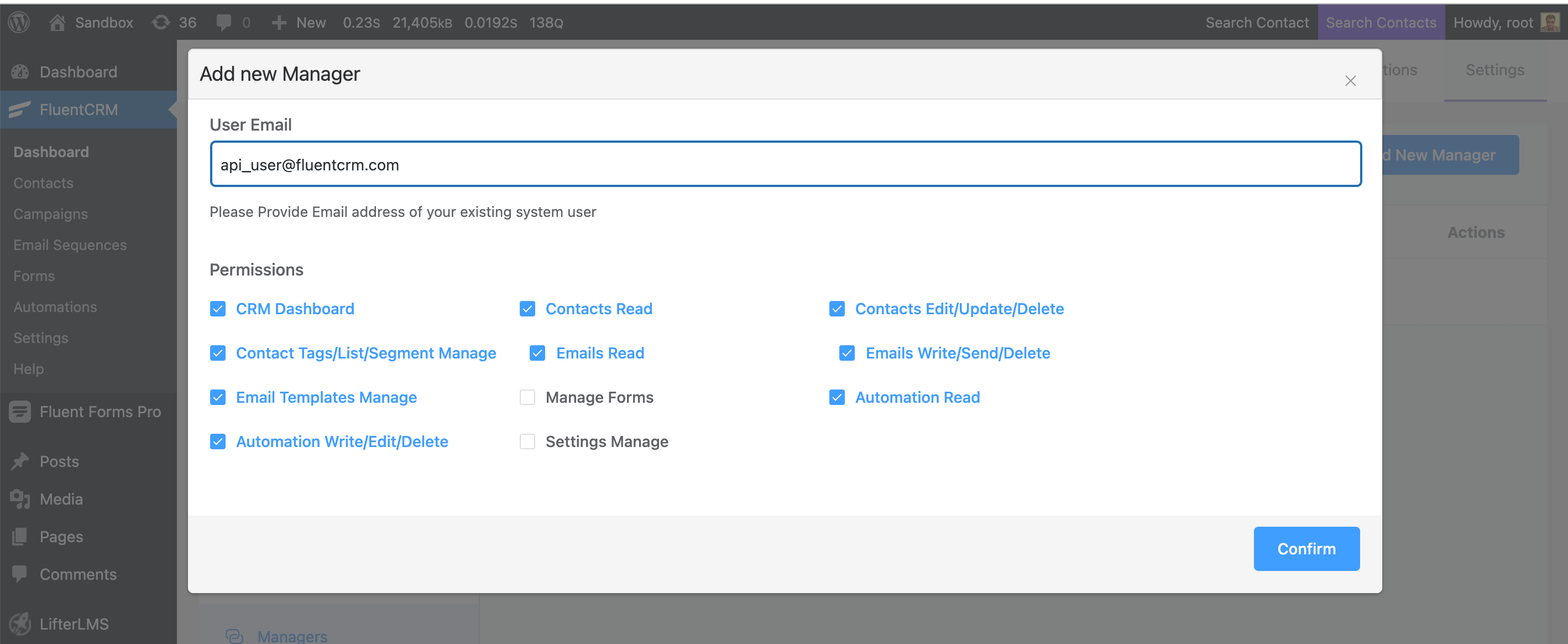
With FluentCRM Pro, grant that account scoped CRM permissions:
- Navigate to
FluentCRM → Settings → CRM Managers - Click "Add New Manager"
- Select the specific FluentCRM permissions you want to grant
- Save the manager account
Important
Do NOT use an Administrator user role for API access. Create a dedicated manager account with only the necessary FluentCRM permissions for better security.
Using the free version?
CRM Managers is a Pro feature. On the free plugin there is no way to grant partial CRM permissions, so API access has to go through a user who can already manage FluentCRM — normally an Administrator. Treat those credentials accordingly: give the Application Password a recognisable name and revoke it the moment the integration is retired.
Step 2: Generate an Application Password
This moved to WordPress
FluentCRM no longer has its own Settings → Rest API screen for creating API keys. Application Passwords are a built-in WordPress feature (since WordPress 5.6), so you create them from the user's profile instead. Passwords generated the old way keep working — nothing needs to be reissued.
- Go to
Users → All Usersand click the manager account you created in Step 1 (orUsers → Profileif it's your own account) - Scroll down to the Application Passwords section
- Enter a name you'll recognise later, for example
FluentCRM API - Click Add New Application Password
Step 3: Save Your Credentials
WordPress shows the generated password once:
- Username: the WordPress username (login) of that account — not the email address
- Application Password: the generated string, displayed in groups like
abcd EFGH ijkl MNOP qrst UVWX
Important
Copy it immediately — WordPress hashes it and it cannot be shown again. If you lose it, revoke the entry and create a new one.
The spaces are only there for readability. WordPress strips every non-alphanumeric character before comparing, so abcd EFGH ijkl and abcdEFGHijkl both authenticate.
Don't see the Application Passwords section?
WordPress only offers it over HTTPS, or when the site is set to the local environment type. On a plain-HTTP site the section is hidden entirely. Serve the site over SSL — that is also a requirement for using Basic Authentication safely, since the credentials travel on every request.
To revoke access later, return to the same screen and delete the entry. That immediately invalidates any integration using it, without affecting the user's normal login password.
Authentication Methods
Basic Authentication
Application Passwords authenticate over HTTP Basic Authentication. The simplest form is curl -u, which builds and encodes the header for you:
curl "https://yourdomain.com/wp-json/fluent-crm/v2/subscribers" \
  -u 'API_USERNAME:API_PASSWORD'
If you build the header yourself, the value must be the base64 encoding of username:password:
curl "https://yourdomain.com/wp-json/fluent-crm/v2/subscribers" \
  -H "Authorization: Basic $(printf '%s' 'API_USERNAME:API_PASSWORD' | base64)"
Always use HTTPS
Basic Authentication sends your credentials on every single request, protected only by TLS. Over plain HTTP they are readable in transit. WordPress will not even expose Application Passwords on a non-SSL site.
Example API Call
Here's a complete example of making an authenticated API request:
curl "https://yourdomain.com/wp-json/fluent-crm/v2/subscribers" \
  -u 'API_USERNAME:API_PASSWORD' \
  -H "Content-Type: application/json"
Response
{
  "current_page": 1,
  "per_page": 10,
  "total": 150,
  "data": [
    {
      "id": "1",
      "first_name": "John",
      "last_name": "Doe",
      "email": "john@example.com",
      "status": "subscribed"
    }
  ]
}
Programming Language Examples
PHP
<?php
$username = 'your_api_username';
$password = 'your_api_password';
$url = 'https://yourdomain.com/wp-json/fluent-crm/v2/subscribers';

$ch = curl_init();
curl_setopt($ch, CURLOPT_URL, $url);
curl_setopt($ch, CURLOPT_RETURNTRANSFER, true);
curl_setopt($ch, CURLOPT_USERPWD, "$username:$password");
curl_setopt($ch, CURLOPT_HTTPHEADER, [
    'Content-Type: application/json'
]);

$response = curl_exec($ch);
curl_close($ch);

$data = json_decode($response, true);
?>
JavaScript (Node.js)
const axios = require('axios');

const apiCredentials = Buffer.from('API_USERNAME:API_PASSWORD').toString('base64');

const config = {
  headers: {
    'Authorization': `Basic ${apiCredentials}`,
    'Content-Type': 'application/json'
  }
};

axios.get('https://yourdomain.com/wp-json/fluent-crm/v2/subscribers', config)
  .then(response => {
    console.log(response.data);
  })
  .catch(error => {
    console.error('Error:', error.response.data);
  });
Python
import requests
from requests.auth import HTTPBasicAuth

username = 'your_api_username'
password = 'your_api_password'
url = 'https://yourdomain.com/wp-json/fluent-crm/v2/subscribers'

response = requests.get(
    url,
    auth=HTTPBasicAuth(username, password),
    headers={'Content-Type': 'application/json'}
)

if response.status_code == 200:
    data = response.json()
    print(data)
else:
    print(f"Error: {response.status_code}")
    print(response.text)
Testing Your Authentication
To verify your credentials are working, make a simple API call:
curl "https://yourdomain.com/wp-json/fluent-crm/v2/reports/options" \
  -u 'API_USERNAME:API_PASSWORD'
If successful, you'll receive a JSON response with FluentCRM options data.
Troubleshooting
Common Issues
401 Unauthorized Error
The request was not authenticated at all — WordPress did not accept the credentials.
Confirm you are using the account's username (login), not its email address
Confirm you are using the Application Password, not the account's normal login password
Re-check the password; if in doubt, revoke the entry and generate a fresh one
If the Authorization header never arrives, WordPress sees an anonymous request. Some Apache setups running PHP as CGI/FastCGI strip it. Add this to
.htaccess:apacheSetEnvIf Authorization "(.*)" HTTP_AUTHORIZATION=$1No Application Passwords section on the profile screen means the site is not on HTTPS (see Step 2)
403 Forbidden Error
The credentials were accepted, but the account is not allowed to perform this action.
- The manager account lacks the capability the endpoint requires — check it against the table below
- Remember the dependencies: write permissions also need the matching read permission
- Note that an Administrator has every capability, so a 403 on an admin account points at something else, such as a security plugin blocking the REST API
404 Not Found Error
- Verify the API endpoint URL is correct
- Ensure FluentCRM is installed and the REST API is enabled
- Check your WordPress permalink structure
Permission Requirements
Permissions are granted per manager on the FluentCRM → Settings → CRM Managers screen. The labels below are what you'll see there, with the underlying capability in brackets:
| Permission | Capability | Needed for |
|---|---|---|
| Contacts Read | fcrm_read_contacts | Reading contacts, lists, tags |
| Contacts Add/Update/Import | fcrm_manage_contacts | Creating and updating contacts |
| Contacts Delete | fcrm_manage_contacts_delete | Deleting contacts |
| Contact Tags/List/Companies/Segment Create or Update | fcrm_manage_contact_cats | Managing lists, tags and companies |
| Emails Read | fcrm_read_emails | Reading campaigns and email data |
| Emails Write/Send | fcrm_manage_emails | Creating and sending campaigns |
| CRM Dashboard | fcrm_view_dashboard | Dashboard and reporting endpoints |
| Manage CRM Settings | fcrm_manage_settings | Settings endpoints — the highest permission level |
Several permissions imply others: granting Contacts Add/Update/Import also requires Contacts Read, and FluentCRM enforces that dependency for you.
Security Best Practices
- Use HTTPS: Always make API calls over secure connections
- Rotate Credentials: Regularly update your API credentials
- Limit Permissions: Grant only the minimum required permissions
- Monitor Usage: Track API usage for unusual activity
- Secure Storage: Never commit credentials to version control
Next Steps
Now that you have authentication set up, you can: